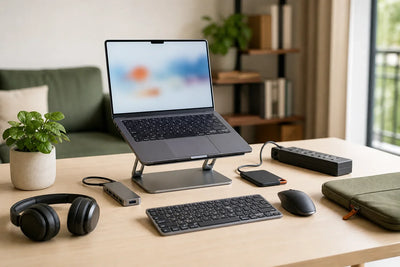
Setting up a home office involves more than placing a laptop on a desk and adding a chair. Once you start working from home regularly, small problems become easier to notice. Your laptop may not have enough ports, cables start taking over the desk, the screen feels limiting when several windows are open, or the audio quality during meetings simply is not good enough.
That is why choosing the best home office accessories should start with your actual needs rather than a list of products that every workspace is supposedly required to have. The goal is not to fill your desk with devices. It is to choose accessories that solve real problems and make your everyday setup more practical.
Someone who spends the day working with spreadsheets and documents may benefit from an external monitor, keyboard, and mouse. A person who attends meetings throughout the day may get more value from a good headset, webcam, and lighting. If you use a modern laptop with limited ports, a USB-C hub could be a higher priority than any of these.
Before buying anything, start by identifying what your current workspace is actually missing.
Building a new home office? Explore computer accessories at Cart and choose the accessories that fit your devices, workspace, and daily workflow.
Before Buying Home Office Accessories, Identify What You Actually Need
It is easy to see a well-designed desk setup online and assume you need everything in it. In reality, the best home office is not the one with the most products. It is the one that supports the way you work.
Start with a few basic questions: What type of work do you do? How many hours do you spend at your desk? How much space do you have? And what causes the most frustration in your current setup?
What Type of Work Do You Do?
Your job has a major influence on which accessories should come first.
A programmer or accountant who constantly switches between windows may benefit from an external monitor. A designer or video editor may prioritize display quality and external storage.
If most of your day consists of video calls, however, improving your headset, webcam, and lighting may provide more value than adding a second screen.
How Many Hours Do You Spend at Your Desk?
There is a significant difference between using a home office for one or two hours and working there for an entire workday.
The longer you use your desk, the more important details such as your keyboard, mouse, screen position, and overall organization become.
How Much Desk Space Do You Have?
A small workspace does not necessarily mean you need a larger desk.
Sometimes the better solution is choosing accessories that make smarter use of the available space, such as a laptop stand, wireless keyboard and mouse, compact USB-C hub, or better cable management.
The goal is to use the space effectively rather than fill every available area.
What Is Wrong With Your Current Setup?
Before buying an accessory, ask one simple question: What problem will this solve?
If you do not have enough ports, consider a hub. If screen space is the problem, consider a monitor. If several chargers are cluttering the desk, a suitable multiport charger may help simplify the setup.
This approach prevents you from spending money on accessories that sound useful but make little difference to the way you actually work.
What Are the Best Home Office Accessories?
You do not necessarily need every product below. Think of these as building blocks for a home office and choose the ones that match your work, devices, and workspace.
1. Laptop Stand for Better Laptop Positioning
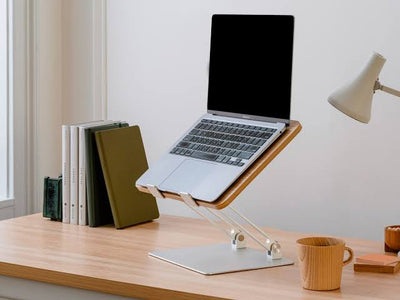
If your laptop is your main work device, a laptop stand is one of the first accessories worth considering.
A stand allows you to change the height or angle of your laptop instead of keeping it flat on the desk. Depending on the design, it can also free up space around the device and help create a more organized setup.
It becomes particularly useful when paired with an external keyboard and mouse or when positioning your laptop beside an external monitor.
How to Choose a Laptop Stand for Your Home Office
Start by checking whether the stand supports the size and weight of your laptop. Then compare stability, height and angle adjustments, materials, portability, and ventilation design.
If you always work at the same desk, a stable fixed or adjustable stand may be suitable. If you regularly move between home and another workspace, a foldable laptop stand may make more sense.
For a more detailed comparison, read our guide to choosing the best laptop stand for work and study.
2. External Keyboard for Everyday Work and Typing
Once a laptop is raised on a stand, using its built-in keyboard can become less practical in many setups. This is where an external keyboard becomes useful.
A separate keyboard also allows you to position your typing area independently from the laptop screen.
Wireless vs. Wired Keyboard for a Home Office
A wireless keyboard reduces the number of cables on your desk and gives you greater flexibility when arranging the workspace. However, depending on the model, it will require charging or replacement batteries.
A wired keyboard eliminates battery concerns but adds another cable to the setup.
Neither option is automatically better. If you value a cleaner and more flexible workspace, wireless may suit you. If cables are not a concern and you want a straightforward connection, wired can work perfectly well.
Explore wireless keyboards at Cart to compare options for your home office.
3. External Mouse for More Flexible Control
A touchpad can be perfectly adequate for browsing and short tasks. For longer work sessions or tasks involving spreadsheets, editing software, and multiple applications, however, a separate mouse can provide more flexible control.
When choosing a mouse for work, do not focus only on appearance. Consider its size, shape, connection type, battery life for wireless models, pointer sensitivity, and any additional controls relevant to your workflow.
Some users may also prefer silent-click models when working in shared spaces or simply trying to keep their office quieter.
If a mouse is an important part of your daily workflow, explore wireless mice at Cart and compare the available options based on how you work.
4. External Monitor for More Screen Space
An external monitor is not essential for everyone, but it can significantly change the workflow for certain types of work.
Instead of constantly switching between windows on a laptop display, you can spread your work across a larger area. For example, you could keep your main document on one screen while displaying references, email, or communication tools on another.
This can be particularly useful for programming, design, video editing, data analysis, spreadsheets, writing, research, and even meetings where you need to view the call and another application simultaneously.
How to Choose a Monitor for a Home Office
Do not start by asking what the largest monitor you can buy is. Start with the size of your desk, your viewing distance, and the type of work you do.
Then compare screen size, resolution, panel type, and available ports. A high refresh rate may be valuable for specific applications, but it is not automatically a priority for every home office user.
5. Monitor Stand or Monitor Arm for Better Desk Organization
Buying a monitor does not mean you have to keep it on its original stand in the middle of your desk.
A monitor stand can raise the screen and sometimes create useful space underneath it. A monitor arm can offer more flexibility in positioning the display and may free up additional desk space.
Before buying a monitor arm, however, make sure your monitor supports the required mounting standard and that the arm can handle its size and weight. You should also check that the mounting method is suitable for your desk.
In a small home office, using space efficiently can be more valuable than adding more accessories.
6. USB-C Hub for Connecting More Devices
Many modern laptops offer a limited number of ports, which can become a problem as soon as you need to connect a monitor, mouse, keyboard, storage drive, or other accessories.
Depending on the model, a USB-C hub can add ports such as USB-A, HDMI, Ethernet, SD card readers, and USB-C Power Delivery.
However, there is an important detail to remember: having a USB-C connector does not automatically mean your laptop supports every USB-C function. Video output, charging, and data capabilities depend on the device and port specifications.
Before buying, check both your laptop and the hub.
If you are unsure which ports and features you need, read our guide to choosing the best USB-C hub for laptop use.
7. Headset for Meetings and Remote Work
If a significant part of your workday involves Zoom, Google Meet, Microsoft Teams, or other calls, audio deserves serious consideration when building your home office.
Do not choose a headset based on music quality alone. For work calls, microphone performance, connection stability, and comfort during longer sessions can be just as important.
Headset vs. Headphones vs. Earbuds
A headset with a dedicated microphone can be practical for users who spend a large part of the day in meetings. Headphones may suit people who want one device for meetings and media, while earbuds offer a smaller and more portable option.
The best choice depends on your workflow rather than one category being universally better than the others.
8. Webcam for Video Meetings
Before buying a separate webcam, test the camera already built into your laptop.
If it provides the image quality you need for meetings, there may be no reason to replace it.
A separate webcam becomes more useful when the built-in camera does not meet your needs or when your laptop is positioned at an unsuitable angle.
When comparing webcams, consider resolution, autofocus when available, performance under your room's lighting conditions, and features such as a privacy shutter if that matters to you.
Remember that image quality also depends on lighting. A more expensive camera cannot always compensate for poor lighting.
9. Desk Lamp for Your Workspace
Lighting is one of the easiest parts of a home office to overlook.
A suitable desk lamp can give you more control over your workspace, particularly when natural light or room lighting is not sufficient throughout the day.
Look for a lamp that fits the available desk space and can be positioned where you need it. Some models provide multiple brightness levels or adjustable color temperature, which can be useful when the same workspace is used at different times of day.
If you frequently appear on video calls, also consider the direction of the light in relation to your face rather than focusing only on the desk surface.
10. Multiport Charger to Reduce the Number of Chargers
Laptop, phone, headphones, tablet, power bank—once several devices become part of your daily routine, your desk can quickly fill with chargers and cables.
A suitable multiport charger can reduce the number of individual charging adapters you need by allowing several devices to charge from one unit.
Some GaN chargers can provide relatively high power in compact designs, but the term "GaN" alone should not determine your purchase.
How to Choose a Charger for Your Home Office
Do not compare chargers based only on their maximum wattage.
Check which charging protocols your devices support, how much power each port can provide, how power is distributed when several devices are connected, and whether your cables support the required charging specifications.
For example, a charger advertised as 100W does not necessarily provide 100W through every port when multiple devices are connected simultaneously.
11. Power Strip or Charging Station for Managing Multiple Devices
A home office can quickly include a monitor, laptop charger, desk lamp, phone charger, speakers, and several other devices.
A suitable power strip or charging station can provide a more practical way to connect them, but the right choice depends on the products in your setup.
Consider the number and type of outlets, any USB ports, cable length, and the electrical and protection specifications stated by the manufacturer.
Most importantly, always use the product within its specified electrical limits.
12. External SSD for Storage and Backups
If your work involves large files, external storage can become an important part of your home office.
Designers, video editors, content creators, photographers, and other professionals may need to move large projects between devices or keep additional copies of important work.
External SSD vs. HDD
External SSDs generally provide faster transfer speeds and are available in compact formats that work well for portable use.
HDDs can often provide larger capacities at a lower cost per gigabyte, making them useful for certain storage and archival needs.
If you regularly transfer or work directly with large files, speed may be the priority. For archiving large amounts of data, capacity and cost may matter more.
13. Cable Management for a Cleaner Desk
You do not need to replace your desk simply because cables have made it feel cluttered.
Cable clips, reusable hook-and-loop straps, cable boxes, and under-desk cable management solutions can help keep wires together instead of letting each one move independently across the workspace.
Before buying organizers, remove cables you no longer use and identify which devices need to remain permanently connected.
Once you know what actually belongs on the desk, choosing the right cable management solution becomes much easier.
14. Speakers for Music and Media
Speakers are not essential for every home office.
If you use headphones throughout the day, you may not need separate speakers at all.
They can be useful, however, if you prefer listening to music, videos, or other media without wearing headphones or want an alternative to your laptop's built-in speakers.
Not every item in a list of home office accessories needs to become part of your shopping list. Choose what fits your actual routine.
15. Desk Mat and Desk Organization Accessories
Once the essential parts of your setup are in place, you can start considering smaller additions.
A desk mat can create a consistent surface for your keyboard and mouse, while a phone stand keeps your smartphone in a defined place instead of leaving it between cables and paperwork.
A tablet stand or desk organizer can also be useful if those devices or tools are part of your daily workflow.
These accessories can improve organization, but they should generally come after solving the more important problems in your setup.
Best Home Office Accessories Based on Your Type of Work
A programmer, video editor, and employee who spends most of the day in meetings will not necessarily need the same accessories.
Use this table as a starting point:
|
Type of Work |
Priority Accessories |
|
Everyday office work |
Monitor, keyboard, mouse, laptop stand |
|
Frequent online meetings |
Headset, webcam, lighting |
|
Programming |
Monitor, keyboard, mouse, laptop stand |
|
Design and video editing |
Monitor, external SSD, USB-C hub, mouse |
|
Content creation |
Monitor, external SSD, lighting, audio/video accessories |
|
Small home office |
Laptop stand, wireless accessories, USB-C hub, cable management |
|
Hybrid or mobile work |
Foldable laptop stand, wireless mouse, headset, compact charger |
Best Accessories for a Small Home Office
A small home office does not require lower-quality accessories. It simply requires smarter use of the available space.
Start with a laptop stand if it helps you make better use of vertical space. A wireless keyboard and mouse can be useful when reducing cables is a priority.
A compact USB-C hub can consolidate several connections around one device, while a multiport charger may reduce the number of separate charging adapters on your desk.
If you use an external monitor, a compatible monitor arm may be worth considering if it helps free up desk space.
And if you use your laptop closed with an external display, a vertical laptop stand can reduce the amount of desk surface occupied by the device.
The principle is simple: in a small home office, optimize the space instead of filling it with more products.
How to Build a Home Office Setup Around a Laptop
If your laptop is the center of your workspace, you can build the rest of the setup around it gradually.
Start with the laptop itself. Add a laptop stand if you need more flexibility in positioning the screen. If raising the laptop makes the built-in keyboard and touchpad less practical, add an external keyboard and mouse.
If you need more screen space, consider a monitor. Once you start connecting more devices and run out of ports, a USB-C hub may become the next useful addition.
A common setup might look like this:
Laptop → Laptop Stand → Keyboard + Mouse → USB-C Hub → Monitor
However, this should not be treated as a mandatory shopping order.
If limited screen space is your biggest problem today, starting with a monitor may make more sense. If meetings are the problem, a better headset could be the first upgrade.
For a broader overview of the products that can complement your laptop, read our guide to the best laptop accessories for work and study.
Essential vs. Optional Home Office Accessories
Even the word "essential" depends on the user. Instead of treating every product as a requirement, consider its priority based on your workflow.
|
Accessory |
Priority |
When You May Need It |
|
Mouse |
High for many users |
When using a laptop for long work sessions |
|
Keyboard |
High in many desk setups |
When using a laptop stand or external monitor |
|
Laptop Stand |
Depends on setup |
When you want more control over laptop screen position |
|
Monitor |
Depends on work |
When you need more screen space |
|
USB-C Hub |
Depends on device |
When your laptop does not have enough ports |
|
Headset |
High for frequent meetings |
When calls are a regular part of your workday |
|
Webcam |
Optional |
When the built-in camera does not meet your needs |
|
External SSD |
Depends on work |
When working with large files or external storage |
|
Desk Lamp |
Depends on lighting |
When your workspace needs additional lighting |
|
Speakers |
Optional |
When you prefer external audio |
How to Build a Home Office on Different Budgets
There is no single budget that every home office requires, and product prices can change over time.
A better approach is to build your setup based on priorities.
Basic Home Office Setup
Start with accessories that solve immediate everyday problems.
For many laptop users, this could mean a mouse, a headset if meetings are important, and suitable desk lighting when needed.
Do not buy a monitor, hub, or stand simply because they appear on a list of "must-have" accessories.
Mid-Level Home Office Setup
As you spend more time working at your desk, you may want to add a laptop stand, external keyboard and mouse, USB-C hub, and headset depending on your needs.
At this stage, the goal is to create a more connected setup around your laptop instead of using each accessory independently.
Complete Home Office Setup
If home is your primary workplace, an external monitor may become an important part of the setup, along with a laptop stand or monitor arm, keyboard, mouse, USB-C hub, headset, external storage, lighting, and cable management.
Even at this level, there is no need to buy everything at once. A good workspace should evolve with the way you work.
What Is the Best Order for Buying Home Office Accessories?
If you are starting from scratch and are unsure where to spend your budget first, this framework can help:
Comfort → Screen Space → Connectivity → Communication → Power → Organization
Comfort
Start with the products that affect the way you interact with your computer every day: mouse, keyboard, and laptop stand when needed.
Screen Space
If your laptop display limits the work you do, consider adding a monitor.
Connectivity
As the number of devices increases, a USB-C hub or another connectivity solution may become necessary.
Communication
If meetings are a major part of your job, improve your headset, webcam, and lighting based on what is currently limiting call quality.
Power
Organize charging and power with chargers and suitable power accessories based on your devices.
Organization
Finally, improve cable management and add desk organization accessories where they provide genuine value.
This is not a fixed rule, but it can help prevent you from spending most of your budget on the appearance of your desk before addressing the problems that affect your work.
Common Mistakes When Setting Up a Home Office
One of the most common mistakes is trying to buy an entire setup at once. After a few weeks of actual use, you may discover that several of those accessories were never necessary.
Another mistake is prioritizing appearance over function. A desk setup can look excellent in photos while being poorly suited to the person using it.
You should also consider whether a monitor fits your available desk space, whether a laptop stand supports your device, whether your USB-C port offers the functions required by a hub, and whether a charger is actually compatible with your devices rather than simply choosing the highest wattage.
Cable management should not be an afterthought either. If you know how many devices you will use and where they will sit, planning cables and power becomes much easier.
Do not assume you need a new webcam when your laptop camera already does the job, or wireless accessories when cables are not causing a problem.
Most importantly, do not copy someone else's desk setup exactly. Your workspace should support your work.
How to Keep a Home Office Organized Without Buying More Accessories
Start by removing what you do not use.
If you only use a particular charger once a week, it does not need to stay on the desk every day. The same applies to cables, devices, notebooks, and other items.
Give frequently used chargers a permanent location, group cables that run in the same direction, and store less frequently used accessories in a drawer or separate storage area.
Wireless accessories can reduce the number of cables in some setups, but they are not a requirement for an organized desk. Three well-managed cables can be better than buying several new devices simply to eliminate them.
Keep what you need during the workday on the desk—not everything you own.
Discover Home Office Accessories at Cart
Once you understand what your workspace needs, choosing products becomes much easier.
If you work primarily from a laptop, you might begin with a laptop stand, keyboard, and mouse before adding a USB-C hub when additional ports become necessary.
If online meetings dominate your workday, audio, camera, and lighting may deserve higher priority.
There is no universal home office shopping list. Compare products based on the problem you need them to solve.
Explore computer accessories at Cart to find accessories for your laptop, desk, and work-from-home setup.
Frequently Asked Questions About the Best Home Office Accessories
What Are the Most Important Home Office Accessories?
The most important accessories depend on the type of work you do. A mouse, keyboard, laptop stand, monitor, USB-C hub, and headset can all be useful in different home office setups. You do not need all of them; start with the accessories that solve the biggest problems in your current workspace.
What Do I Need for a Work-From-Home Setup?
Start with your primary computer, a reliable internet connection, and a suitable workspace. From there, you may need an external keyboard and mouse, monitor, headset, USB-C hub, lighting, charging accessories, or cable management depending on your work.
How Can I Set Up a Small Home Office?
Prioritize accessories that make efficient use of space. A laptop stand, compatible monitor arm, compact USB-C hub, multiport charger, and effective cable management can help keep a smaller desk organized without adding unnecessary products.
Do I Need an External Monitor for Working From Home?
Not necessarily. If your laptop display provides enough space for your work, you may not need another monitor. An external display becomes more useful when your workflow involves multiple applications, windows, or documents at the same time.
Is a Laptop Stand Necessary for a Home Office?
No, but it can be useful if you want more flexibility when positioning your laptop screen or already use an external keyboard and mouse. The right stand depends on your laptop size and desk setup.
Do I Need an External Keyboard and Mouse With a Laptop?
Not always. If the laptop sits directly on your desk and its built-in controls work well for you, external accessories may not be necessary. They become more practical when using a laptop stand or an external monitor.
Why Use a USB-C Hub in a Home Office?
A USB-C hub can add connections to laptops with limited ports. Depending on the model, it may provide HDMI, USB-A, Ethernet, card readers, and Power Delivery. Always check both the hub specifications and the capabilities of your laptop's USB-C port.
What Type of Headset Is Best for Working From Home?
Look for a headset with a microphone suitable for your calls, a stable connection, and enough comfort for the length of time you normally wear it. The choice between a headset, headphones, and earbuds depends on your meeting schedule and preferences.
Do I Need a Separate Webcam?
Not if your laptop's built-in camera already provides the quality you need. A separate webcam is more useful when you need different image quality, positioning, or features.
How Can I Organize Home Office Cables?
Remove unused cables first. Then group cables running in the same direction using clips or reusable straps. Cable boxes and under-desk management solutions can also help when you have several permanently connected devices.
Which Home Office Accessories Should I Buy First?
Start with the problem that affects your work the most. If control is the issue, a mouse may come first. If screen space is limiting you, consider a monitor. If you lack ports, a USB-C hub may be the priority.
How Can I Build a Home Office on a Limited Budget?
Do not try to build a complete setup in one purchase. Identify the two or three problems that affect your work most and address those first. After using the setup for a while, you will have a much clearer idea of which upgrades are worth paying for.
Conclusion: Which Home Office Accessories Are Best for You?
Choosing the best home office accessories does not mean buying a large monitor, laptop stand, keyboard, mouse, USB-C hub, headset, webcam, and every other product featured in a typical desk setup.
The best workspace is the one that contains what you actually use.
If you spend long hours working on a laptop, a mouse, keyboard, and laptop stand may be a logical starting point. If you regularly work across several applications, an external monitor could make more sense. And if your day is filled with meetings, improving your audio and video setup may deserve priority.
A simple rule can help you make better decisions:
Identify the problem → Set your priorities → Choose the right accessory → Use it → Decide what needs improving next.
Following this approach allows you to build a practical home office around the way you actually work instead of simply collecting more devices.
Start with the accessories you genuinely need. Explore computer accessories at Cart and choose products that fit your devices, desk space, and everyday workflow.